
DataMac® Database Application - Help
|
DataMac Startup
|
This is the first window that will appear when you startup the Datamac database for the first time.
It requires the initialization key which you are supposed to receive via email.
If you havn't received the initialization key via email, then contact John Blodgett at 630-916-6110 or email
john.blodgett@mackayco.com to get a new key.
The initialization key determines the number of components you are going to have in your database.
If you would like to have more components in your database, please contact John Blodgett to upgrade the initialization key.
|
|
This is the log-in window where you have to enter your datamac database password.
Sometimes we send the password to clients via email. If you don't receive the password via email, please feel free to call the number on
that screen to get a new password.
The password is good for 3 months. After 3 months the datamac database will notify you that the password has been expired.
In this case you have to call the number on that screen again to renew your password. There is no charge to renew the password.
|
|
|
DataMac Menu
|
In the menu window, you can initiate the following actions:
- DISPLAY GRAPHS - It displays the graph window where you can set graph criteria and generate graphs.
- QUERIES & REPORTS - Displays a control panel window where you have the ability to output different results (e.g., population by components) and preview/print different reports.
- SETTINGS/OPTIONS - Displays a window where you can change some settings/options regarding the database (e.g., initialization key).
- DATABASE DEFINITIONS - Displays an informative page where you can see descriptions/definitions about stuff included in the database (e.g., components, vocations).
- DATAMAC HELP WEB SITE - Displays the entire help about the DataMac database.
- EXIT DATABASE - Quits the DataMac database.
The label in the right-bottom corner indicates the data that this database is reflecting (e.g., Year-End 2007).
|
|
|
DISPLAY GRAPHS
|
This is the window where you can display different types of graphs based on selected graph parameters and criteria.
The right portion of this window is like a small control panel where the user can choose different graph parameters (see below) or change the graph criteria and click on the Graph button to display the graph.
The question mark images ( ) on the very right side display the help specific to the sections where they are located.
|
|
|
Graph Parameters
|
The button on the left is the Graph button. Click this button to
display/refresh the graph after you have changed graph parameters and/or
graph criteria.
The checkbox in the middle is the Auto Refresh checkbox.
When checked the graph will automatically refresh everytime you change one of the graph parameters or graph criteria.
In this case you don't need to click on the Graph button.
|
|
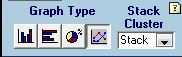
The first button on
the left is the Column Graph button. The column
graph plots the values on the Y-axis (see a sample graph).
The second button from the left is the Bar Graph
button. The bar graph plots the values on the X-axis (see a sample graph).
The third button from the left is the Pie Graph
button. The pie graph shows the relative distribution percentages
of the market according to your graph criteria. The pie graph
is "sliced" according to the Graph Data by drop
down (see a sample graph).
The button on the right is the Line Graph button.
The line graph plots the values on the Y-axis (see a sample graph).
The Stack/Cluster drop down changes how the column and bar graphs display the columns and bars
by either stacking or clustering them.
|
|
|
The Column Value
drop down determimes which data values to graph. "Value" displays
the value in U.S. dollars of the market according to your graph
criteria. "Units" displays the number of component units according
to your graph criteria.
|
|
|
The Stack or Cluster by drop down determines which data segmentation the graph will
display in the columns or bars.
|
|
|
The Graph Data by drop down determines which data segmentation
the graph will display along the X-axis of the column graph, along the Y-axis of the bar graph, or in the slices of the pie graph.
|
|
|
Graph Source
|
The Graph Source drop down determines which market segmentation the graph will use.
The default segmentation is the entire United States.
MacKay & Company can segment the total market by county groups into states,
MSA's, or your own market definitions.
If you are interested in adding this flexibilty to the DataMac Database, please contact John Blodgett at 630-916-6110 or email
john.blodgett@mackayco.com
The Criteria button on the right opens the Market Segmentation criteria for the selected Graph Source.
For instance, if you have a DataMac Database with market segmentation by state,
you can click on the Criteria button here and select any combination of states from which to create your graph
(see below).
|
|
In the State Criteria window, you can segment your market by US states.
You can select individual states by which you want to segment your market. If you don't want to segment your market by states,
then just select All US States.
This option is not available in the regular databases. To add this option in your database, please contact John Blodgett at 630-916-6110 or email
john.blodgett@mackayco.com.
|
|
In the MSA Criteria window, you can segment your market by MSA's.
To display this window, select MSA from the Graph Source drop-down list and click on Criteria button.
In this pop-up window you can select any MSA's by which you want to segment your market.
This option is not available in the regular databases. To add this option in your database, please contact John Blodgett at 630-916-6110 or email
john.blodgett@mackayco.com.
|
|
|
Graph Criteria
|
The Graph Criteria button opens the Graph Criteria Pop-Up. (See below.)
The 1, 2… 6 buttons are shortcuts to the saved criteria assigned
to them. You can save several criteria and assign them to any
shortcut button. Then you can apply any saved criteria by just
clicking on the corresponding button. You can have up to six
shorcuts.
The Criteria drop-down list displays the list
of saved criteria and not deleted. You can apply any saved graph
criteria by just selecting them from the list and refreshing
the graph.
The View, rename, describe, delete criteria and assign shortcut buttons
button ( ) opens a new pop-up window where you can view or rename your saved criteria,
provide more description for them, delete or assign shortcuts to them (see below under Edit Saved Criteria).
The Save this criteria button ( )
saves any new created criteria. You can click on the Graph
Criteria button and create new graph criteria. Then in order
to save the created criteria permanently, you have finally to
click on the Save this criteria button.
The Use title checkbox can be used to display the graph titles at the top of the graph.
If checked off, then the titles would appear.
The notepad-icon button ( ) opens a notepad window
with text that exhausitively describes the graph parameters and criteria you have selected.
The text is properly formatted into tables and ready to be printed.
|
|
The Graph Criteria Pop-Up allows you to select any combination of components.
You can directly select components one-by-one in the component list on the Components Tab,
or you can select whole groups of components with the checkboxes to the right on the Components Tab.
You can also select sub-groups of components by clicking on the Open SubGroup button,
which opens the SubGroup Graph Criteria Pop-Up (see the second picture).
The radio buttons under Graph Data by determine which "cut" of the data the graph will use.
The choice of radio button will also alter the Stack or Cluster by and
Graph Data by drop downs on the main screen by making that cut of the data available as an option.
The middle tab will also change according to the radio button selected, and this middle tab will allow you to select
which sub-divisions you want the graph to use in its results. The Years Tab operates in the same capacity.
Standard Access sorting and filtering can be used on the component list by Right-Clicking on one of the six
columns: Grp (Component Group), SGrp (Component SubGroup), Vcls (Vehicle Class), the "selected" checkbox,
ID (Component ID), and Component Name.
|
|
The Name field displays the name of the criteria.
You can edit the name of the criteria by modifying the value of this field.
The Description field displays the description
about the current criteria. In this field, you can provide a
longer description about your criteria.
The Graph Title 1, Graph Title 2, Graph Title 3, and Graph Title 4 fields display the titles for the graph.
These titles would appear at the top of the graph only if the Use title has been checked off.
The Created Date and Modified Date fields display
the date and time when the criteria was created and modified
for the last time.
The Is Deleted checkbox indicates whether the current criteria have been deleted or not.
If this checkbox has been checked off, then the current criteria have been deleted and would not appear in
the Criteria drop-down list.
But even if the current criteria have been deleted, you can uncheck this checkbox and make the current criteria again available.
The Assign Shortcut buttons can be used to assign a shortcut to the current criteria.
You can assign a shortcut by just clicking on any of them (1,…,6). You can have only one shortcut per criteria.
If you don't want to assign any shortcut to the current criteria, then just click on the Unassigned button.
The navigation buttons ( ) can be used to navigate over the entire list of
the saved criteria.
|
|
|
Other Features
|
This portion provides some other features of the Datamac database that may be important in some cases.
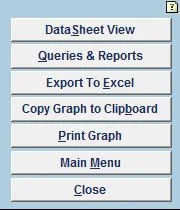
DataSheet View
Use this button to display the data in DataSheet view. You can copy-and-paste the data from DataSheet View
to another application such as an Excel spreadsheet.
Queries & Reports
The Queries & Reports function opens the Queries & Reports Pop-Up (See below). In that pop-up window,
you can extract different reports based on components and
specific year.
Export to Excel
This button exports the underlying data to an Excel file. When you click on this button, the Save dialog box will appear
giving you the ability to chose the location where you would like to save the excel file.
The name of the excel file is unique to prevent from overwriting the previously outputted excel files.
Copy Graph to Clipboard
The Copy Graph to Clipboard function works like any other Windows copy function.
Clicking on this button will copy the current screen graphic to the clipboard. The paste function in the edit menu
of any other program (i.e., word processor) will paste the graphic.
Print Graph
The Print Graph button will display a pop up window where you can chose either to preview the current graph or
immediately print it to your default printer in landscape view, full size on 8.5" by 11" paper.
Either black and white or color printing is available.
Color overhead transparencies or color hard copies can be printed directly from this program by setting
the default printer to your color printer and clicking on the Print Graph button.
If you want to print multiple copies or print to a diffrent printer from your default printer, click Print Preview
on that pop-up window. This will leave the graph open in print preview mode
so you can use the standard File/Print menu in Access and then make your desired print choices.
Main Menu
The Main Menu button displays the first menu window that appears after you startup the datamac application.
Close
The Close button closes the current window.
|
|
|
QUERIES & REPORTS
|
Population by Component button displays the population of components by vocations.
Miles to Replacement button displays the replacement miles of components by vocations.
Parts per Vehicle button displays the parts per vehicle of components by vocations.
Partial Replacement Factor button displays the replacement factor of included components.
Population by Vehicle Class button displays the population of vehicle's classes by vocations.
Average Annual Mileage button displays the average annual mileage of vehicle's classes by vocations.
Utilization button displays the utilization factor of vehicle's classes by vocations.
Graph Criteria PopUp button displays the graph criteria pop-up window (see "Graph Criteria" above).
Component Detail button displays a report which contains details about
each component included in the database (i.e., population, distribution channels, point of services, replacement types, etc).
You can preview and/or print this report to your default printer by using the standard File/Print menu in your Access.
Component Detail New/Used button is almost like the Component Detail button
except it displays more details by distinguishing the new and used components.
Component Forecast button displays the forecast for the included components. In this report,
we forecast: population, adjusted market, and replacement type.
|
|
|
SETTINGS/OPTIONS
|
The Graph Criteria button displays the graph criteria
pop-up window (see "Graph Criteria" above).
The Change Initialization Key button displays the window where you can change
the initialization key for your database (see above).
The Re-Link Saved Criteria button re-links
your saved criteria file with your current database. This
function is important in case you update your database and
want to make sure that the previously saved criteria file
has been re-linked.
|
|
|
DATABASE DEFINITIONS
|
The Vocation Definitions tab displays the list of vocations and their definitions.
The Components Included tab displays the list
of all components that are included in the database. For each
component, it gives some details i.e., Group, Sub-Group, Vocation
Chanel, etc.
The Vehicle Definitions tab displays the list
of vehicle’s categories and their definitions.
|
|
Background
General
MacKay & Company has been providing aftermarket parts potential information (DataMac) to the truck industry since the early 1980’s. MacKay & Company has developed an interactive database for analysis and display of DataMac data in a wide range of charts and graphics. This document is the users manual for that database.
The scope of the database is:
Aftermarket parts potential for medium and heavy duty trucks and trailers used in the United States.
The database contains information for 12 years, 1999 through 2010.
All of the options are menu drivenpoint and click. No database programming knowledge is required to utilize the full functionality of the database.
Data Sources
General
The database is developed around two primary sources of information, end user survey results and MacKay & Company’s vehicle population models. The database is a bottom up analysis of usage patterns rather than a top down allocation of sales. The database includes the same 364 components which are in MacKay & Company’s DataMac Truck.
Survey Data and Methodology
The primary focus of DataMac surveys is to gather information on truck component usage patterns, replacement types and channel selections. The results of many years of survey work are incorporated into this interactive database.
Data Weighting and Redistribution
Each survey respondent’s answers were weighted based on the number of power units operated by the respondent. The survey results were redistributed by vocation and fleet size so that the distribution and weight of the respondents matched the distribution of the United States vehicle population.
MacKay & Company’s Vehicle Population Models
The second primary database input, MacKay & Company’s vehicle population models, contains vehicle populations by vocation, fleet size and vehicle weight class. MacKay & Company’s vehicle population database is combined with the survey results to create the DataMac database.
Database Overview
The database includes United States aftermarket parts potential for Class 6, 7 and 8 trucks, trailers, and school buses. The database contains DataMac data "cut" primarilly five ways:
- Vocation
- Replacement Type
- Distribution Channel
- Point of Service
- Fleet Size and Vocation
Starting with one of the five above, the data can be sliced further into five (or six) more groups and their respective sub-divisions to form a multitude of combinations and comparisons:
- Vehicle Class
- Class 6: 19,501 to 26,000 GVW Two Axle Straight Trucks
- Class 7: 26,001 to 33,000 GVW Two Axle Straight Trucks
- Class 8: More than 33,000 GVW Tractors and 3-Axle St. Trucks
- Trailers: Trailers
- Component Group
- Power Generation
- Power Transmission
- Undercarriage
- Electrical
- Other
- Component SubGroup
- Power Generation
- Engine Components: Internal
- Engine Components: External
- Engine Components: Repair/Maint
- Power Transmission
- Clutches
- Manual Transmissions
- Automatic Transmissions
- Axle Components
- Propshaft Components
- Wheel Seals/Bearings
- Undercarriage
- Air Brakes
- Hydraulic Brakes
- Power Steering/Front End Part
- Suspension: Springs/Shocks
- Wheels/Hubs
- Electrical
- Electrical Starters/Alternators
- Batteries
- Lights/Misc. Electrical
- Other
- Air Conditioning
- Seats
- Other Parts & Components
- Mirrors
- Component
- Year
- Market Region (extra capability)
Database Security
This database, its underlying tables and any queries, reports, charts, tables or other output are the proprietary property of MacKay & Company. Any use of this database, including but not limited to extracts of it or output from it, for any purpose detrimental to the best interests of MacKay & Company is strictly prohibited.
The database is password protected and only those persons specifically authorized to have access to the database are to be given the password.
The database is structured so that users cannot make changes to the database or the queries. If any user attempts to modify the database or its queries, the entire database program will be corrupted and the output will no longer be valid.
Database Program
The database is a Microsoft Access 2000 database. A run-time version of Access 2000 is NOT provided; therefore, Access 2000 or later IS required on the computer to use the database. No changes are allowed to the database.
For best appearance, your display should be set to 1024 by 768 pixels. This can be changed through the control panel / display / settings.
Hardware and Software Requirements
To use Access 2000, you need:
- PC with a Pentium 75 MHz or higher processor
- Microsoft Windows® 95 or later operating system, or Microsoft Windows NT® Workstation operating system version 4.0 Service Pack 3 or later
- For Windows 95 or Windows 98:
- 16 MB of RAM for the operating system, plus an additional 8 MB of RAM for Access
- For Windows NT Workstation version 4.0 Service Pack 3
or later:
- 32 MB of RAM for the operating system, plus an additional 8 MB of RAM for Access
- Available hard-disk space for Access 2000 (Number indicates typical installation. Your hard-disk usage will vary depending on configuration. Choices made during Custom installation might require more or less hard-disk space):
- Typical installation: 161 MB
- Available hard-disk space for Office 2000 (Numbers indicate typical installation; your hard-disk usage will vary depending on configuration. Choices made during Custom installation might require more or less hard-disk space.):
- 217 MB for Disc 1 (Word, Excel, Outlook, PowerPoint, Access)
- CD-ROM drive
- VGA or higher resolution monitor; Super VGA recommended
- Microsoft Mouse, Microsoft IntelliMouse®, or compatible pointing device
MacKay & Company Contact
Operational questions should be directed to:
- MacKay & Company - 630.916.6110
- Ask for...
- Dave Fulghum
- Muhamet Spahiu
|